Members and Roles
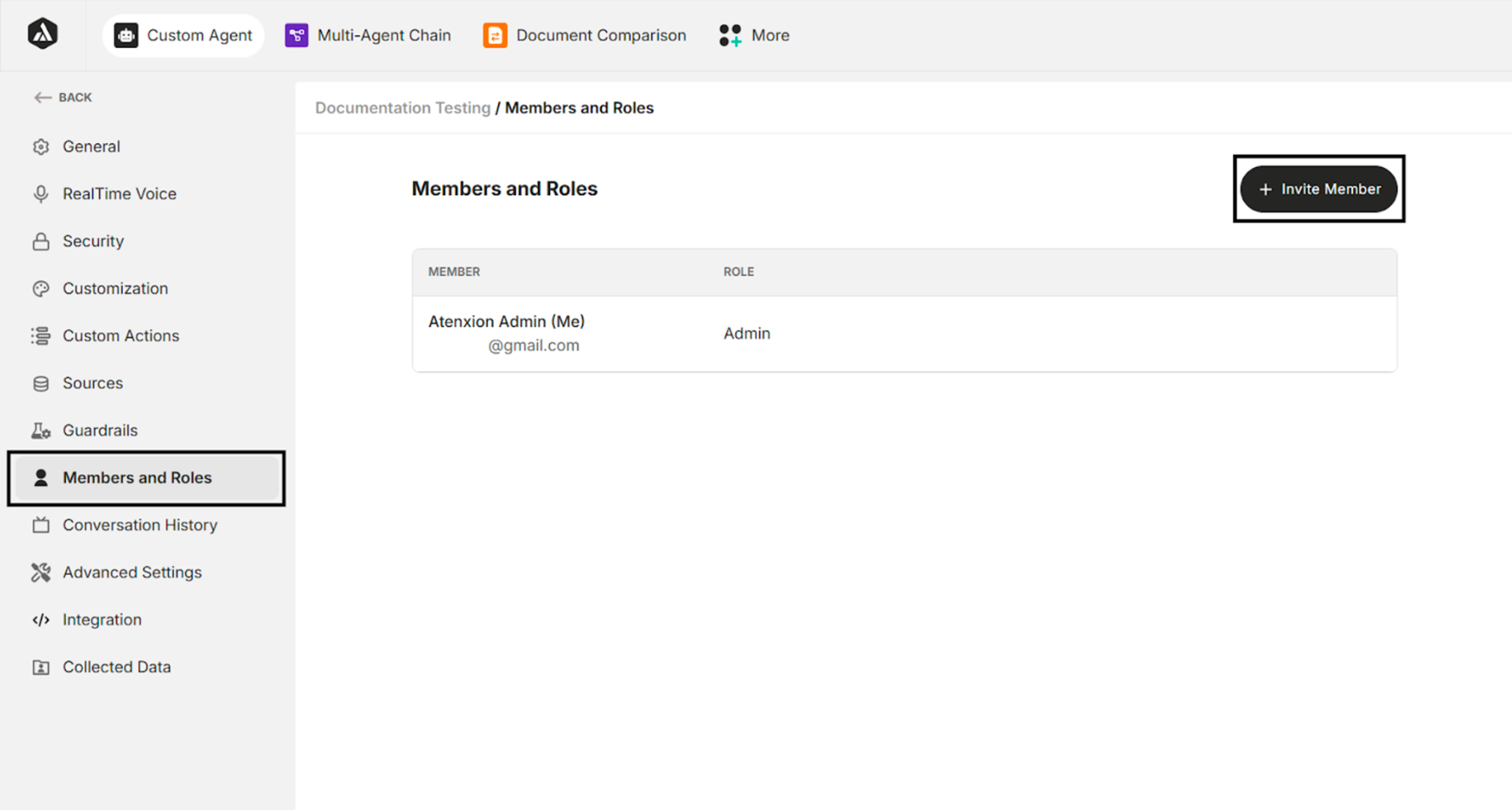
| Button | Description |
|---|---|
| + Invite Member | Invite the agent owner and member |
Table: Invite Member Button
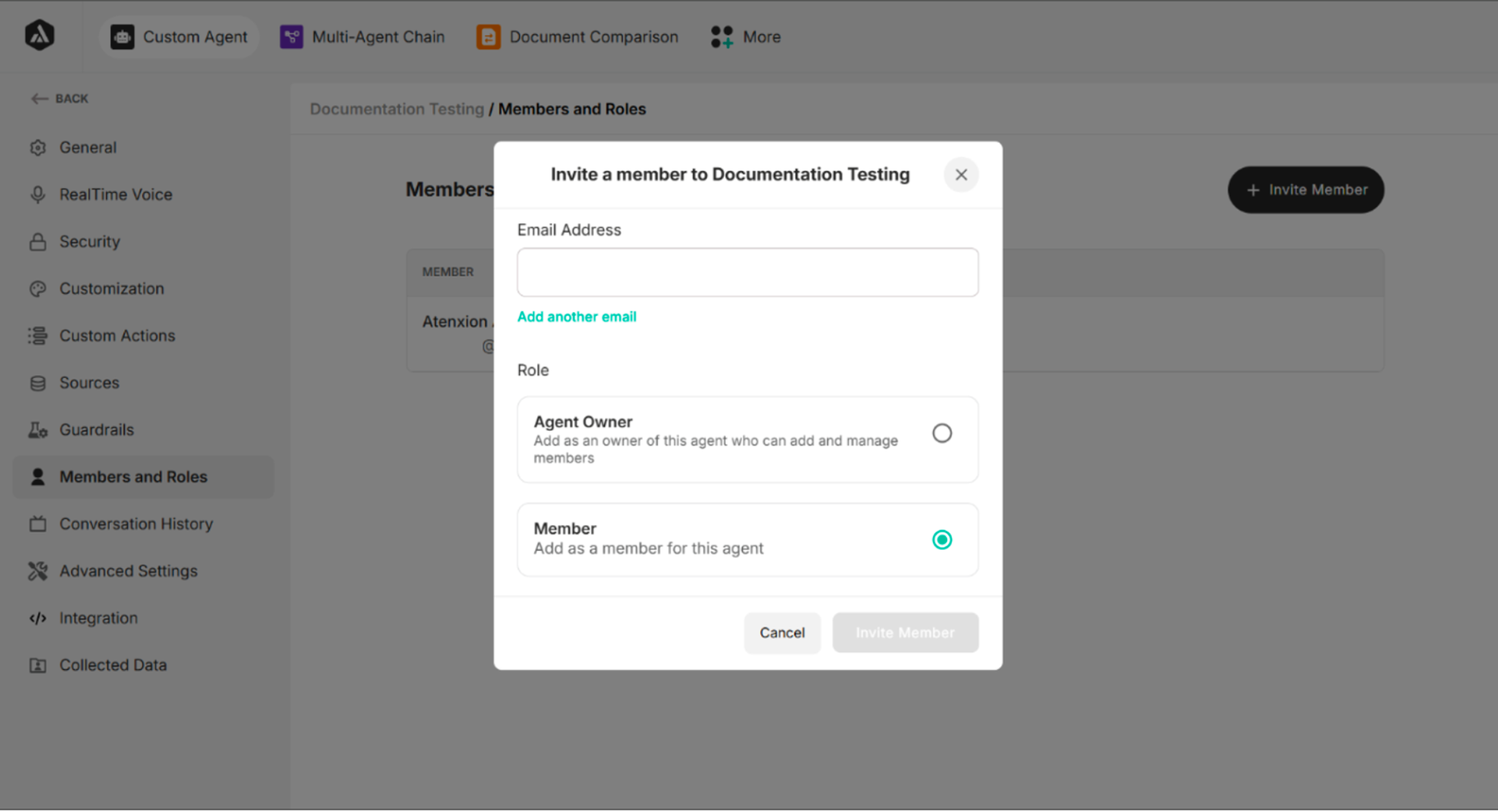
Invite a Member to the Agent
| Buttons/Fields | Description |
|---|---|
| Email Address | Enter the email address of the invitee |
| Add another email | Allow admin to invite more than one invitee |
| Agent Owner | Add as an owner of this agent who can add and manage members |
| Member | Add as a member for this agent |
| Cancel | Cancel the invitation process |
| Invite Member | Confirm the invitation process |
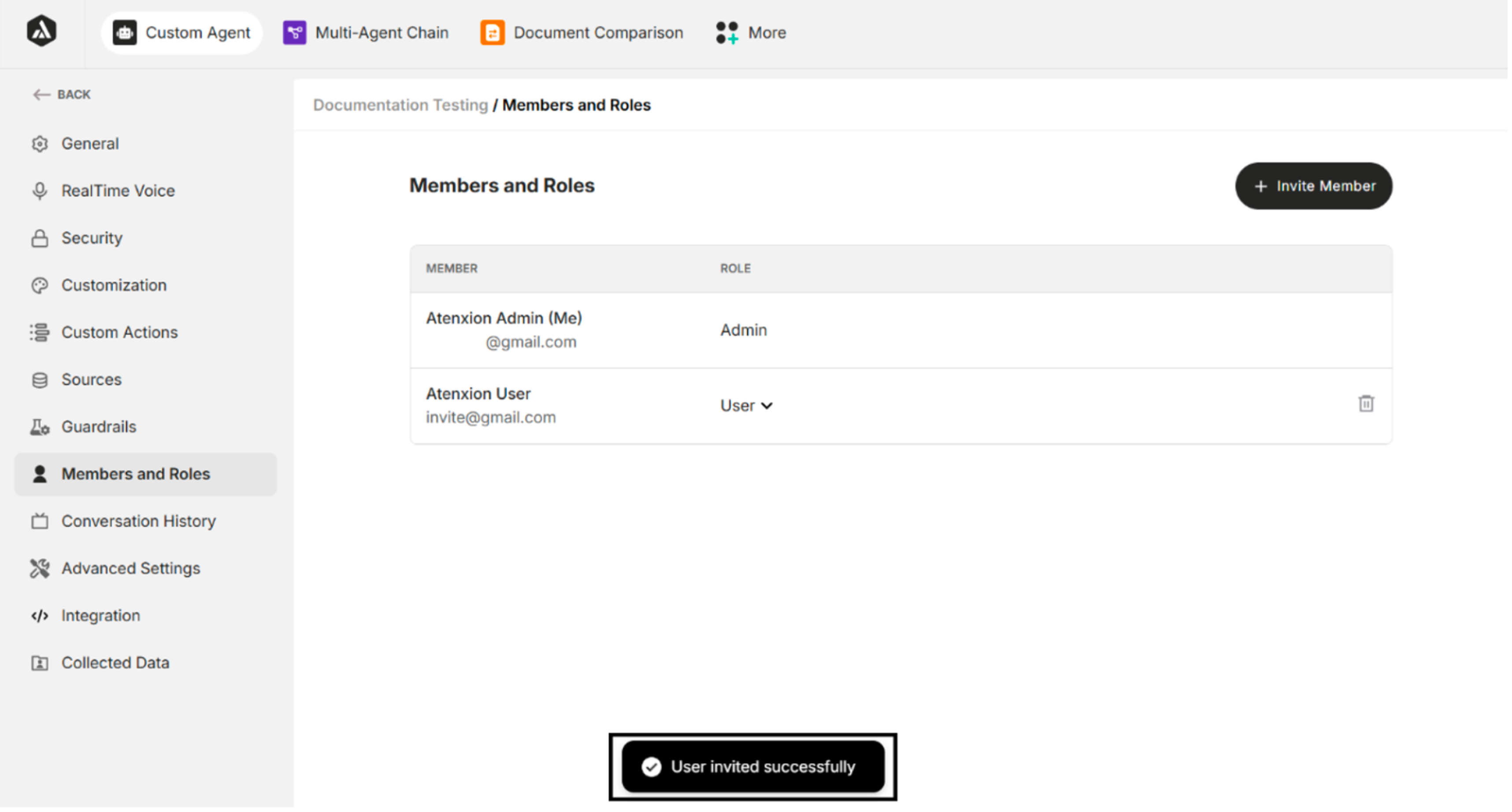
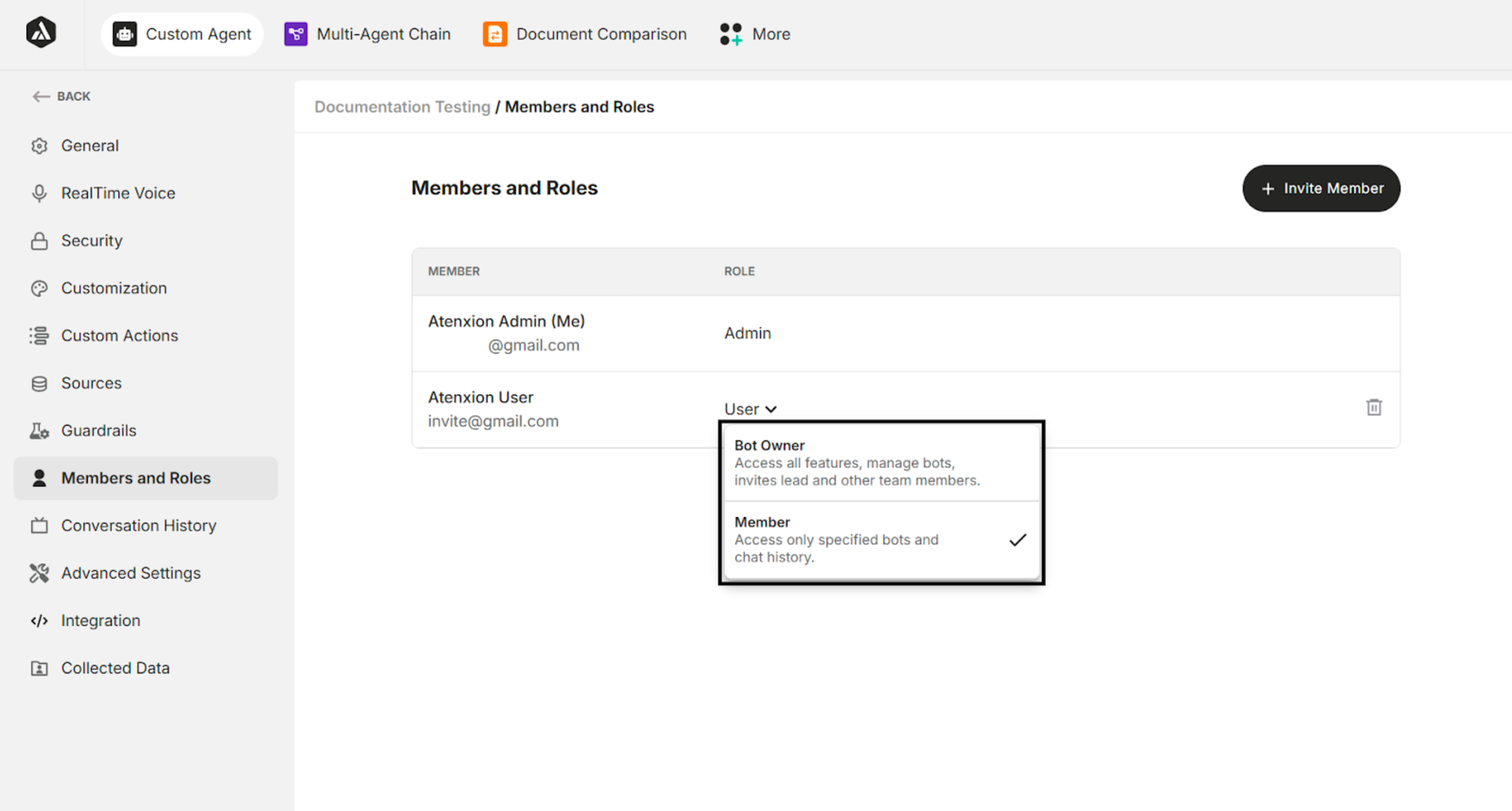
Role Changes
| Options | Description |
|---|---|
| Bot Owner | Access all features, manage bots, invites, leads, and other team members |
| Member | Access only specified bots and chat history |
Deleting the Invited User
| Buttons | Description |
|---|---|
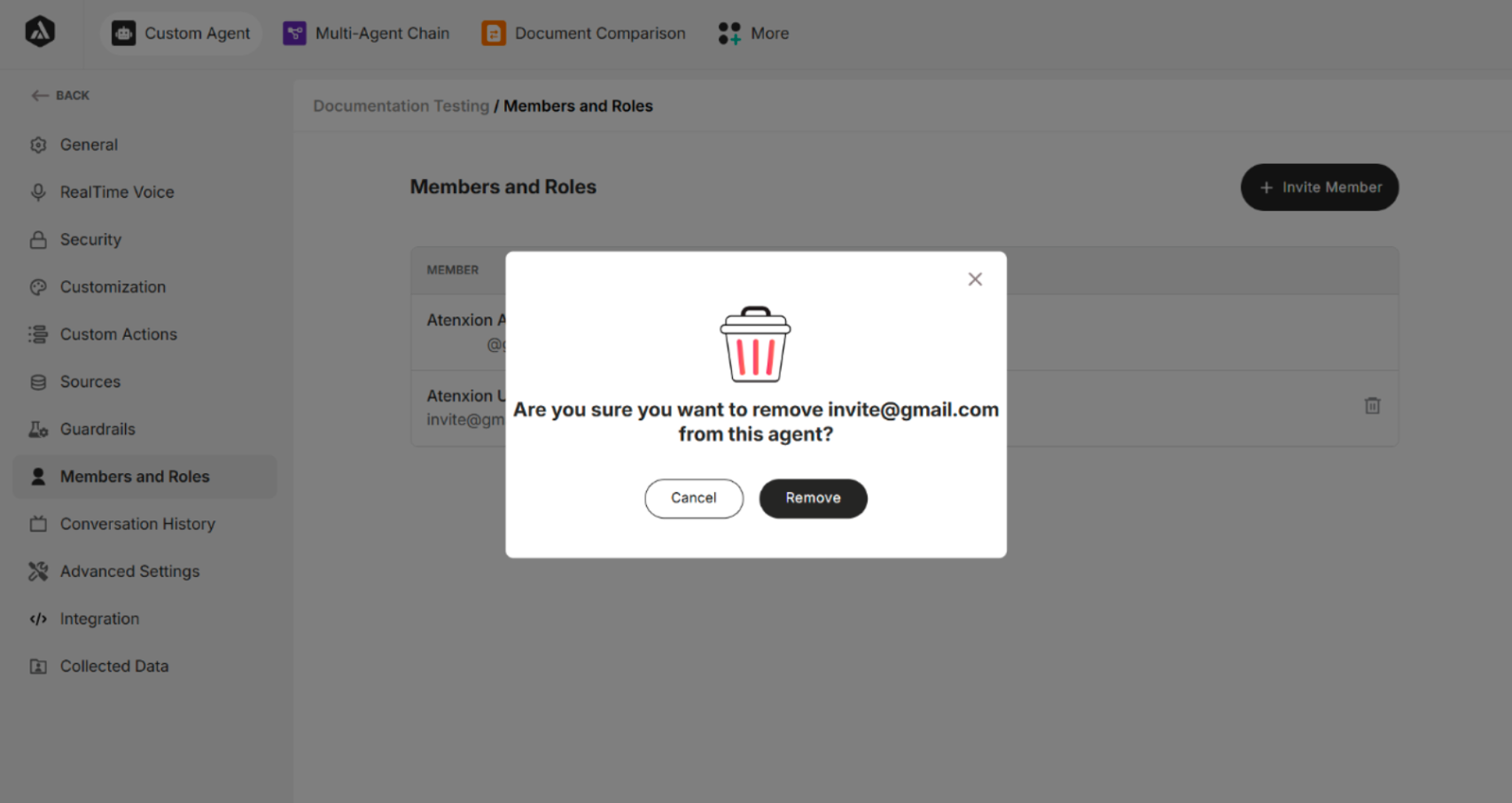
| Cancel | Cancel the user deletion process |
| Remove | Remove or delete the invited user |
Table: Buttons in the Delete Confirmation Dialog